Office Line & Scheduling
This is the core of the Office Coordinator role: answering Meridian's main line, handling scheduling for new and existing customers, and making sure everything booked follows the same standard.
Inbound Office Line Calls
Calls come from a mix of sources: existing customers asking about a visit, reschedules and cancellations, billing questions, general questions, and occasionally a new prospect calling instead of using the web form. Answer in Meridian's name, then figure out quickly which kind of call it is.
Before you do anything else on an existing customer's call, pull up their account.
- Pull up the account first, before you ask the customer to explain anything.
- Check the last service date, along with any notes or photos attached to the account.
- Notes get added for exactly this reason, so you can see what's already happening before you're a minute into the call.
Inbound Text Messages
Texts land in Jobber the same way calls do, and answering them promptly is just as much your responsibility as answering the phone. A text sitting unread for hours is the same miss as a call going to voicemail and never getting a callback. Apply the same standard: respond fast, figure out what the person needs, and move it toward booked or resolved. A short "got your message, give me a few minutes" beats silence every time.
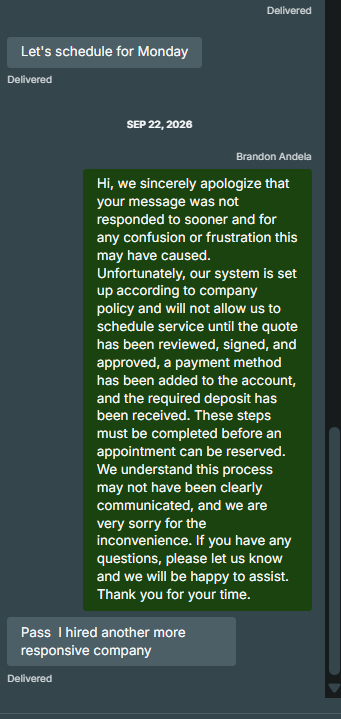
We've lost a sale over this. The message above is a real example, a slow reply cost us a customer who had already been quoted. A text is never lower priority than a call, treat every one exactly the same as a ringing phone.
This is the whole team's responsibility, not just whoever started the conversation. A technician or manager may be in the field, in a meeting, or heads-down building something (like this very manual) and simply may not be able to get back to a message right away. If you see a customer thread that's gone unanswered for over an hour, whether or not you were the one talking to them, don't assume it's being handled. Check with the staff member: ask if they're planning to respond soon or if they'd like you to take over. Never assume someone else has it covered unless you've been told so explicitly. When in doubt, ask, we're a team.
Watch: Handling a Booking Call
Walking through how to handle and book a call, start to finish.
JOBBER FOR EVERY CALL, EXCEPT FB/GOOGLE SPECIAL LEADS
HighLevel is only used for incoming Facebook and Google ad leads, the ones calling or messaging in about the $50 discounted special. Once they become a customer, mark them Closed in HighLevel, nothing else happens there, and Jobber takes over. All communication from that point goes through Jobber text or the Jobber phone line. Every other call to the office line, an existing customer, a reschedule, a billing question, a referral, someone who just found us on their own, goes straight into Jobber. It never touches HighLevel.
Existing Customers
Pull up their Jobber record first, confirm you have the right client and property, handle what you can, and log a one-line note. Anything needing manager approval gets a follow-up as soon as you hear back, same day, no promises made on the call. With volume this light, nothing should sit.
New Prospects Calling In
Calling about the Facebook/Google $50 special? Log it in HighLevel and run through Chapter 7. Once they book, mark it Closed in HighLevel and work them in Jobber from there. Calling in on their own, a referral, word of mouth? Straight into Jobber, no HighLevel.
Reschedules
Never move someone off their zone day without a real reason. Offer the next window on their normal day first.
View the Schedule Correctly, Before You Book
Before you offer anyone a time, make sure you're actually looking at the whole team's availability. Open the calendar, set Team to All (or select every team member) instead of leaving it on your own name or "None," and confirm you're on the correct day or week. Booking off a filtered or empty view is how double-bookings and missed openings happen.
Watch: Viewing the Jobber Schedule Correctly
Shows how to switch the Team filter from None to All so every technician's jobs are visible, and how to confirm you're looking at the right day before quoting an opening to a customer.
Routing & Zone Schedule
Houston Zone Map by Zip Code
Same zones as above, plotted by zip code so you can place an address at a glance.
Reference Only, Not the Final Word
Zip codes shown are a reference built from the city names in the zone schedule above, they're not an exact Jobber service boundary. Wednesday's route also covers other southern Brazoria County addresses not individually shown here. If an address's zip isn't on the map or falls near a boundary, verify coverage in Jobber or check with management before quoting a day.
Watch: Service Area Schedule
A quick visual run-through of the zone schedule above, day by day, including the no-Fridays-in-Houston policy and the last-Saturday-only rule.
Default: book the customer on the zone day that matches their address, on the nearest upcoming occurrence. Thursday is the release valve for same-day emergencies and true out-of-zone addresses, don't default there just for convenience. Never pull a job out of its zone day to accommodate a discounted service.
SATURDAY: LAST RESORT ONLY
The last Saturday of each month is open as a route, but it is never offered by default. Only bring it up if a sale would genuinely be lost without it. If it's offered as a first option, everyone will take it, and once a single Saturday customer is booked, that route is effectively locked to their area, making it very hard to fit anyone else in from outside it. Treat Saturday as a closing tool for one at-risk sale, not a standing option.
Arrival windows, never exact times. Every appointment is booked and communicated as a window ("between 10 AM and 12 PM"). Confirm Jobber's automatic "technician on the way" text is turned on.
When a Customer Wants a Day We Can't Accommodate
We work all over the city, and routes are set up in zones for a reason. Sometimes a customer wants a specific day or time that doesn't fit the schedule. How that moment gets handled either builds trust or breaks it fast.
ESCALATE BEFORE YOU AGREE, NEVER AFTER
If you're not sure something can be accommodated, get it checked and approved before you tell the customer yes. Don't agree to a day or time you're not sure we can deliver on and try to sort it out afterward, that's how trust gets lost fast. Look at the schedule, escalate if needed, then respond.
WORKED EXAMPLE: HUMBLE CUSTOMER WANTING MONDAY
A customer in Humble is pushing for a Monday appointment. Monday's route is already Sugar Land, Richmond, and Rosenberg, nowhere near Humble. The right move is to explain upfront, politely, that we apologize but Monday is already booked elsewhere and isn't available for their address, then offer what actually works: Thursday first (the out-of-zone release-valve day), and the last Saturday of the month if Thursday doesn't work and the sale would otherwise be lost. Don't tell them Monday might work and then walk it back later.
Use good judgment before stretching to accommodate an out-of-area customer at all. It's easy to get excited about a sale and say yes just to make the numbers look good, but an out-of-service-area customer who won't work with our schedule can turn into a recurring problem, not a one-time exception. If an address is 40 minutes out and the job itself takes real time, that can mean 80-plus minutes of drive time around a discounted first visit we make little or nothing on. We try to accommodate everyone we reasonably can, but the routes exist for a reason, don't agree to something that doesn't make sense just to book it.
LOOK AT THE MAP FIRST
Pull up the address on a map at the start of the call, before saying anything about scheduling. Knowing where it actually falls relative to our current routes tells you right away whether this is a normal booking, a Thursday/Saturday situation, or one to flag before promising anything.
Custom Recurring Schedules: Do It This Way
When building a recurring series, always use the Custom schedule option, set by relative weekday (like "4th Tuesday"), never a fixed calendar date. The one exception is the first visit itself: it can land wherever the soonest opening actually is, but every visit after that needs to fall back onto the customer's real zone day.
Worked Example: Katy Customer (Zone Day = Tuesday)
The earliest opening for their first visit happens to be the 4th Monday of the month. Book the first visit there, since that's genuinely the soonest we can get to them. But when you build the recurring series in Jobber, set the custom rule to "4th Tuesday," not "4th Monday." The first visit is the one exception; every visit after it falls back onto Tuesday, the customer's real zone day. Setting the whole series to "4th Monday" would drift every future visit onto the wrong day, permanently.
Recurring Jobs: The $50 Line Item Rule
Every new recurring job starts with a placeholder line item, then gets corrected once the first visit is done. Follow this exactly:
- Set up the job as recurring, at the correct frequency and the correct zone day, using the Custom schedule rule above.
- Enter the line item as a flat $50 for that first visit. This is a placeholder, not the real price.
- Complete the first visit as normal.
- Once it's marked complete, go back into the job and delete the $50 placeholder line item.
- Add the correct line item for whatever service the customer actually signed up for (Monthly General, Monthly VIP, Quarterly, etc.) at the agreed price.
- Apply that corrected line item to all future visits in the series, so every visit going forward invoices at the real price, not $50.
- Go into the job and schedule out every remaining visit for the next 12 months on the customer's correct zone day, don't stop at the first visit. Booking only the first service and walking away means next month's or next quarter's visit can fall through the cracks. Scroll the calendar forward and confirm a visit actually exists for every remaining month of the year.
- Double check the series is still set to fall on the customer's correct zone day moving forward. Editing the line item should never change the schedule.
WORKED EXAMPLE: RICHMOND CUSTOMER
A Richmond customer books a Monthly General on the 4th Monday of the month. Richmond's zone day is already Monday, so there's no fallback needed like the Katy example above, but the job still isn't done at booking. Go into Jobber and confirm the recurring series has a visit scheduled for every 4th Monday for the next year, Monthly General, correct price, correct day. That's what makes the job actually recur instead of quietly disappearing after the first visit.
Payment On File
Before any job is confirmed on the calendar, confirm a valid payment method is on file, recurring or one-time. This is an office responsibility, not the technician's. If a customer can't provide payment at booking, don't schedule the job until it's resolved.
NO EXCEPTIONS ON THE FIRST VISIT
Every customer pays before their first service, no exceptions. A payment method has to be on file and a deposit collected before the job gets a spot on the schedule. This is what keeps things clean, no one wants to be having a conversation about where the money is after the fact, and collecting up front is what keeps discrepancies minimal to none. If the payment method and deposit aren't in place, the job doesn't go on the calendar yet, no matter how good the lead is.
Objections About Paying Before Service
| They Say | You Say |
|---|---|
| "Can't you just schedule it and I'll pay when the technician shows up?" | "I wish I could, but unfortunately our system doesn't let us reserve a spot on the schedule without a payment method added and a deposit collected first. Once that's on file, I can get you locked in for [day]." |
| "Why do you need my card before anyone's even come out?" | "It's just how we keep everything clean on our end so there's never any confusion about what's owed after the visit. Our technician will walk you through everything once they're out there." |
| "I don't feel comfortable giving my card over the phone." | "Totally understand, it only gets used to reserve your appointment and it's stored securely in our system. I can take it however's most comfortable for you." |
| "Other companies don't ask for this." | "We've found this is what keeps pricing accurate and avoids any awkward conversations about money after the fact, it protects you as much as it does us." |
Watch: Scheduling Recurring Service After the Initial Special
Shows exactly how to set up the recurring schedule once a customer's initial discounted special visit has been booked, including building out the full recurring series for the year so nothing falls through next month or next quarter.
Getting Started in Jobber
A fast overview of clients, quotes, jobs, and the calendar in one pass, useful any time you need a refresher on the basics.
Watch: 3 Minute Jobber Overview
A quick top-level tour of Jobber: clients, quotes, jobs, and the calendar in one pass.
Credit: Jobber Help Center
Client Records & Notes
Contact info, property details, service history, and notes all live on one client record. Check it before every call so you're never starting from zero.
Watch: Using Notes and Attachments in Jobber
Shows how to log notes and attach files directly to a client or job record, so the next person to open it has full context.
Credit: CRM Tutorials Library
Handling Online Booking Requests
Jobber's self-scheduling lets a customer submit a booking request straight from the website, but a web-submitted request is a starting point, not a confirmed job. Before it counts as booked:
- Check the requested date against the customer's zone day. If it doesn't match, don't leave it as submitted, use the process above for finding a day that actually works.
- Confirm the address falls inside a documented service area using the zone map above before anything else moves forward.
- Get a payment method on file and the deposit collected. The no-exceptions rule applies whether the request came in by phone or through the website.
- Call or text the customer to confirm everything before locking it in. Self-submitted forms sometimes have the wrong address, service, or a typo in contact info, catch it before a technician is on the way to the wrong place.
Handling Objections to Appointment Notifications
Customers occasionally message in confused about or pushing back on an upcoming visit after getting the appointment notification. Handle it the same way every time.
If the customer already has a payment method on file, that's all we need to move forward. We can complete the service today and accept payment later if that's a concern, we don't need to re-collect payment before every recurring visit once it's already on file.
If the customer refuses service and still wants to reschedule, honor the request, that's all we can do at that point. But before the conversation ends, try to lock in a real day. Let them know our normal service day for their area and give them a rough sense of when their next visit would typically fall. For a Missouri City customer on Monthly, for example: "We normally service your area every Wednesday, and your service falls on the third Wednesday of the month." The same logic applies for Quarterly, just spaced out further. Giving that up front sets expectations and makes the next conversation easier.
Never Fully Commit, the Schedule Can Change
Give the customer a realistic sense of timing, but don't lock in a promise you can't guarantee, routes and availability can shift. Remind them that we send an automatic reminder 7 days ahead of every appointment and again 3 days ahead, and the technician sends an ETA notification the day of service once they're en route. Between those, the customer always has a heads-up and a chance to flag a conflict before it's too late.
Situational Scripts: Scheduling & Payment
Ready-to-use language for four things that come up constantly on the office line. Use them as written, they're built to acknowledge the customer's situation while protecting the schedule and the business.
Reschedule Request
Always ask why before you move anything, sometimes the real issue is something you can solve without touching the date at all, payment on file being the most common one. If they still want to move it, get a real reason and remind them the system will keep showing the service as due.
Late Payment
Reach out before a lapse happens, not after. Frame it as protecting the customer's coverage, not just collecting a balance.
Customer Asking for Technician's ETA
This is the everyday version of the ETA question, before anything is actually running late. Give the scheduled window, explain the ETA notification, and be upfront that an exact time isn't possible. If they push further, you can offer to reach out to the technician, just set the expectation that they're often busy on a job and may not respond until they're already headed that way.
Technician Delayed
Send this proactively the moment you know a technician is running behind. Don't wait for the customer to call and ask where they are.
Partial Access (Locked Gate, Dog Out, etc.)
We don't miss appointments. If a gate is locked or a dog is out back, the technician still treats the front and every area they can reach, then moves on, that visit still counts as service rendered. Use this script to explain that: no refund applies since service was performed, and we send multiple notifications ahead of every visit specifically so access isn't an issue. Get a follow-up visit scheduled for whatever was missed as soon as possible.